Night Audit is an end-of-day process that reviews and locks a period, preventing further changes to transactions on or before the locked date. Locking a period is how you close out your books for those dates: once a period is locked, its charges, payments, and reservations are final, so your reports and ledgers for that range can be trusted.
Despite the name, you don't have to run it every single night. You can lock any span from the last locked date up to today. That said, longer periods will include more folio items to review.
The Night Audit
The first screen shows three cards that summarize what needs your attention before locking the period:
- Night Audit: Review and lock the current period to prevent further modifications to transactions on or before the locked date.
- Housekeeping: Shows occupied rooms that aren't marked Dirty yet but should be — because a guest stayed overnight, the room needs cleaning. You can review the rooms via Guest Services, or click the button to set all occupied rooms to Dirty.
- Long Stays: Shows reservations that could qualify for a long-stay tax exemption but aren't marked tax exempt yet. Click the button to apply the exemptions in bulk.
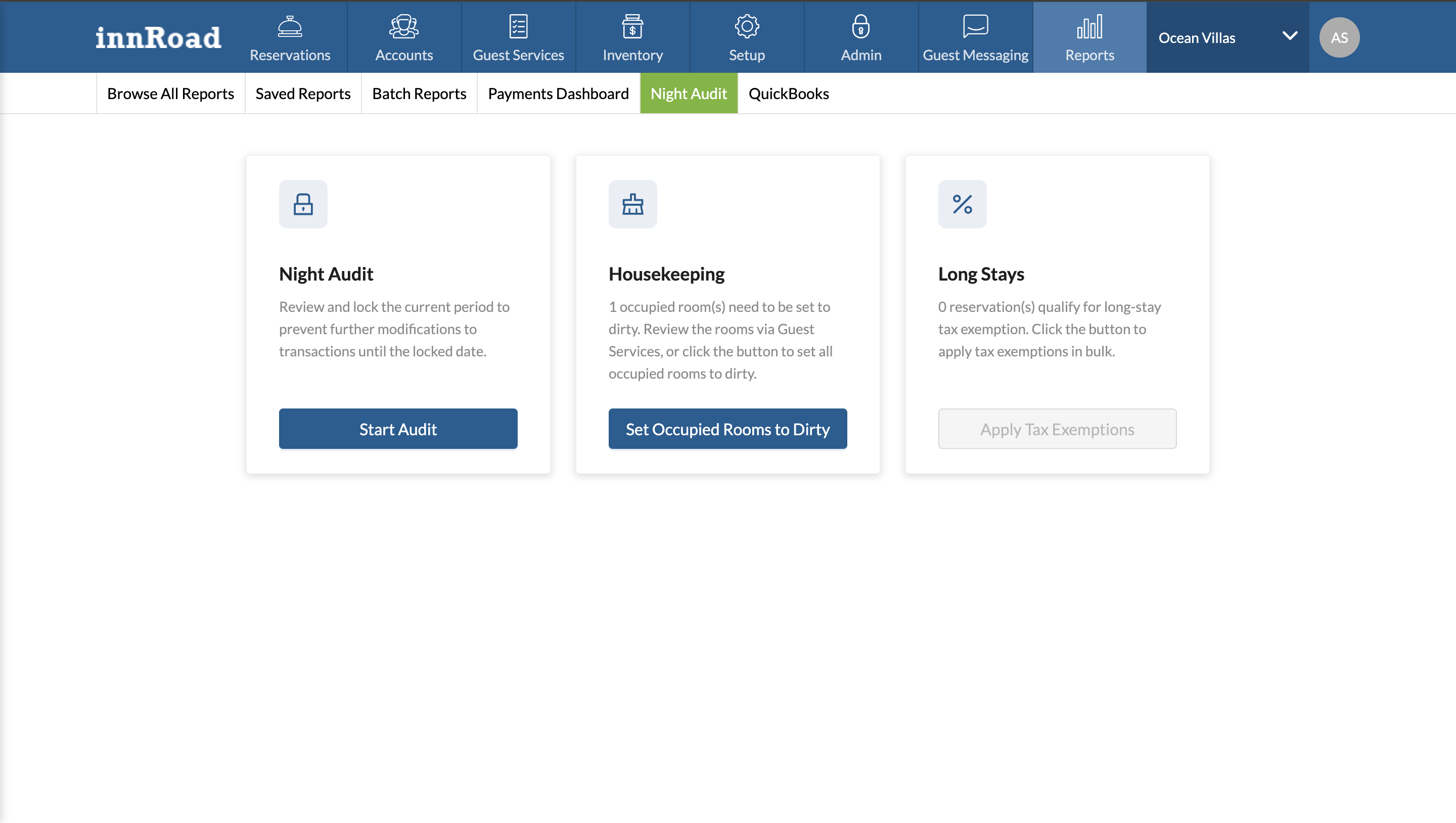
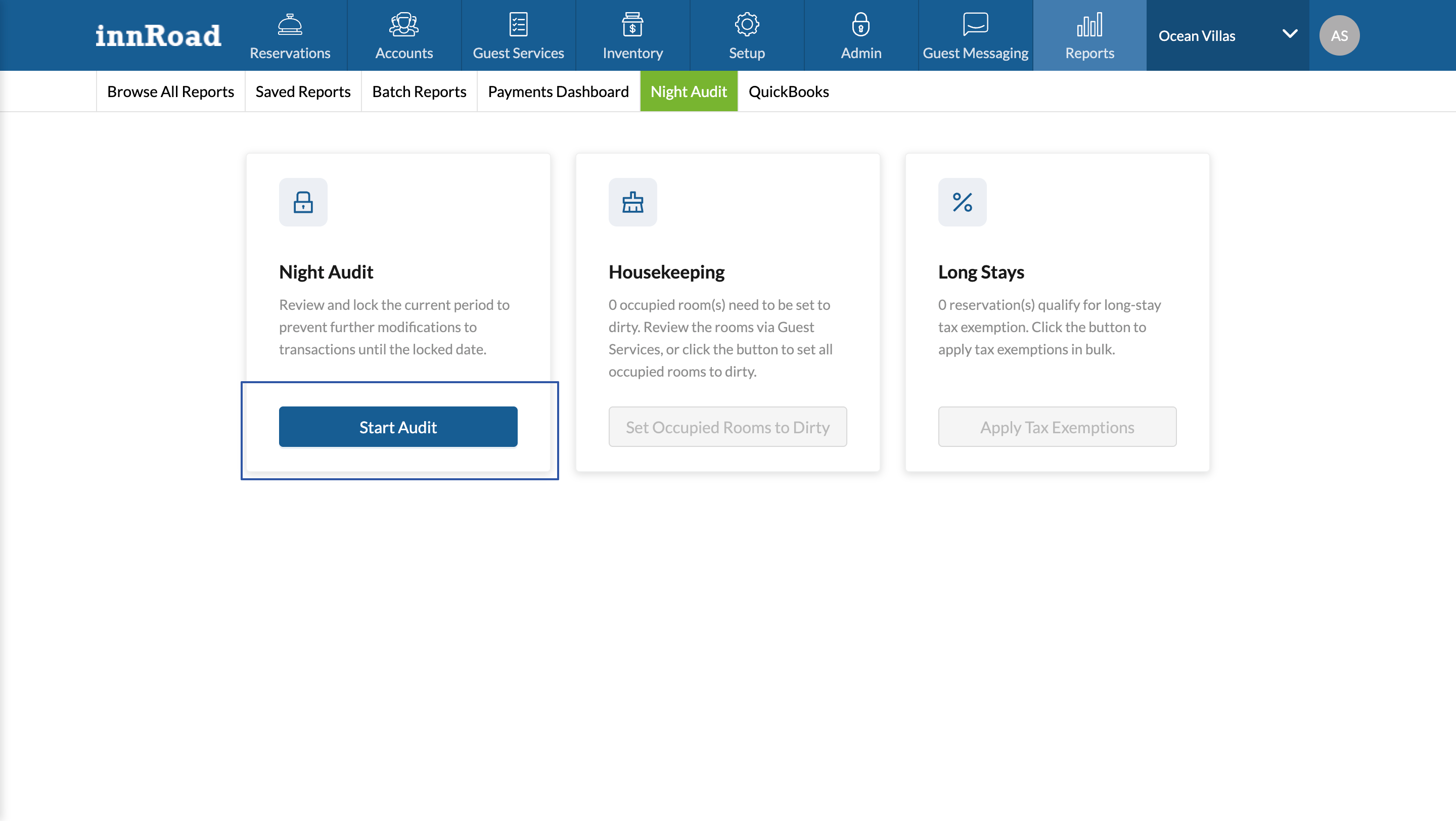
The Housekeeping and Long Stays cards only show a record count when there are actions to take. Otherwise, the related button is disabled.
Long-stay tax exepmtion criteria depend on your property settings. You can check your current Long-Stay tax exemption settings in Setup > Property > Options > Tax.
Set occupied rooms to dirty in bulk
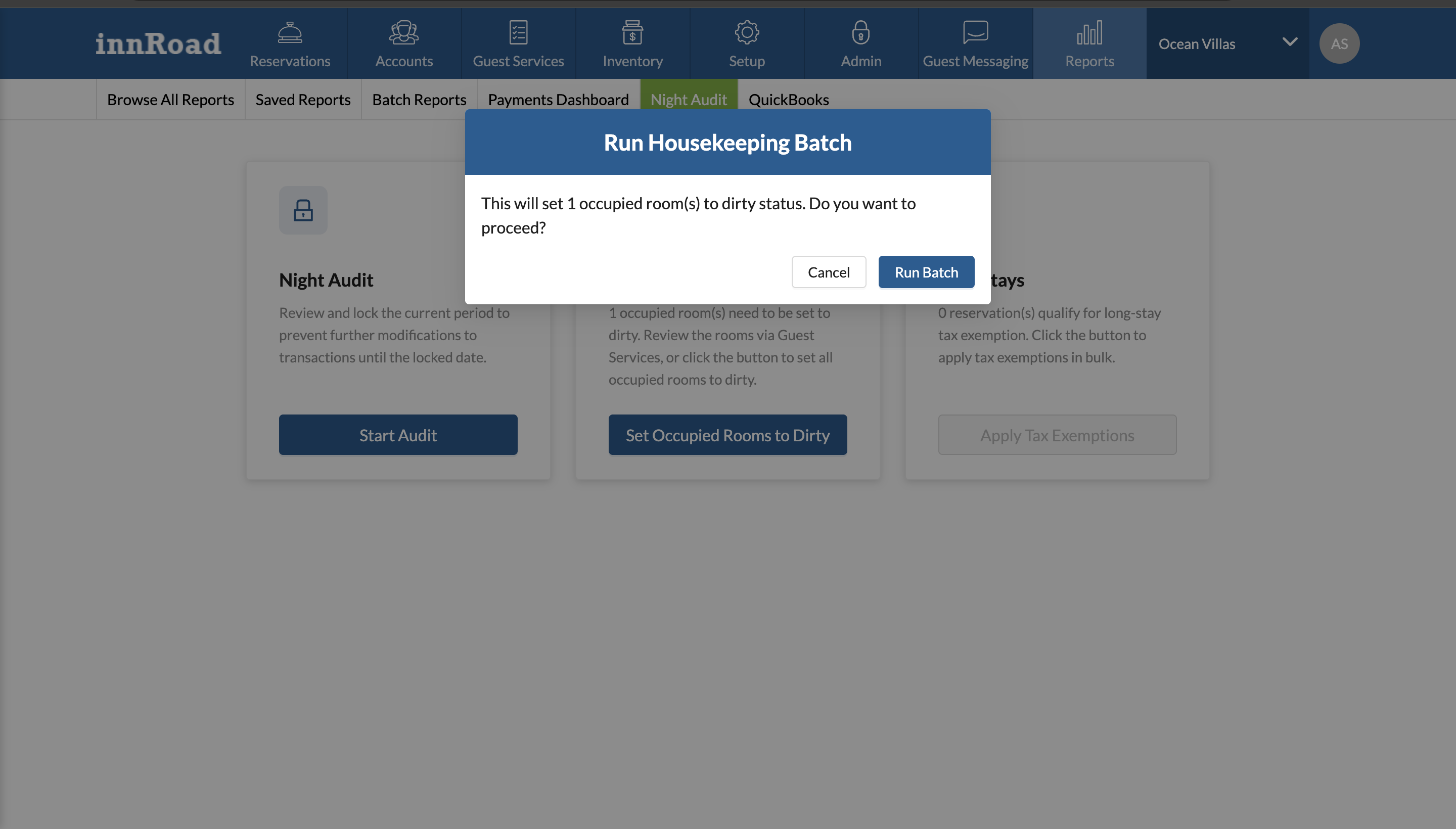
An occupied room that had an overnight guest needs cleaning, so it should be marked Dirty for housekeeping to pick up. When occupied rooms still need to be marked Dirty, the Housekeeping card shows how many rooms are affected. To update them in bulk:
- On the Housekeeping card, click Set Occupied Rooms to Dirty.
- In the Run Housekeeping Batch confirmation window, review the number of rooms that will be set to dirty status.
- Click Run Batch to proceed, or Cancel to go back without making changes.
Starting the Night Audit
In a nutshell, the Night Audit is a process to:
- Review Pending Folio items
- By default, room charges are created as Pending items, until they are posted manually or during the check-in or check-out process.
- Manual payment methods, like Cash, Check, Reservation, or Account payments are created in a Pending status by default.
- Automatic Payment Methods like Card or ACH payments are final when stored in the folio, and do not go through the posting process.
- Confirm the amounts are correct and Post the folio items.
- Lock the period to prevent any further changes.
Click Start Audit on the Night Audit card to begin.
The screen shows the Last Lock Date at the top so you always know where the previous period ended.
The Calendar shows a lock icon on the currently locked date. You can only select a period to lock starting from the day after the last locked date up to today.
- On the Start the Night Audit screen, select the Audit Date you want to lock through.
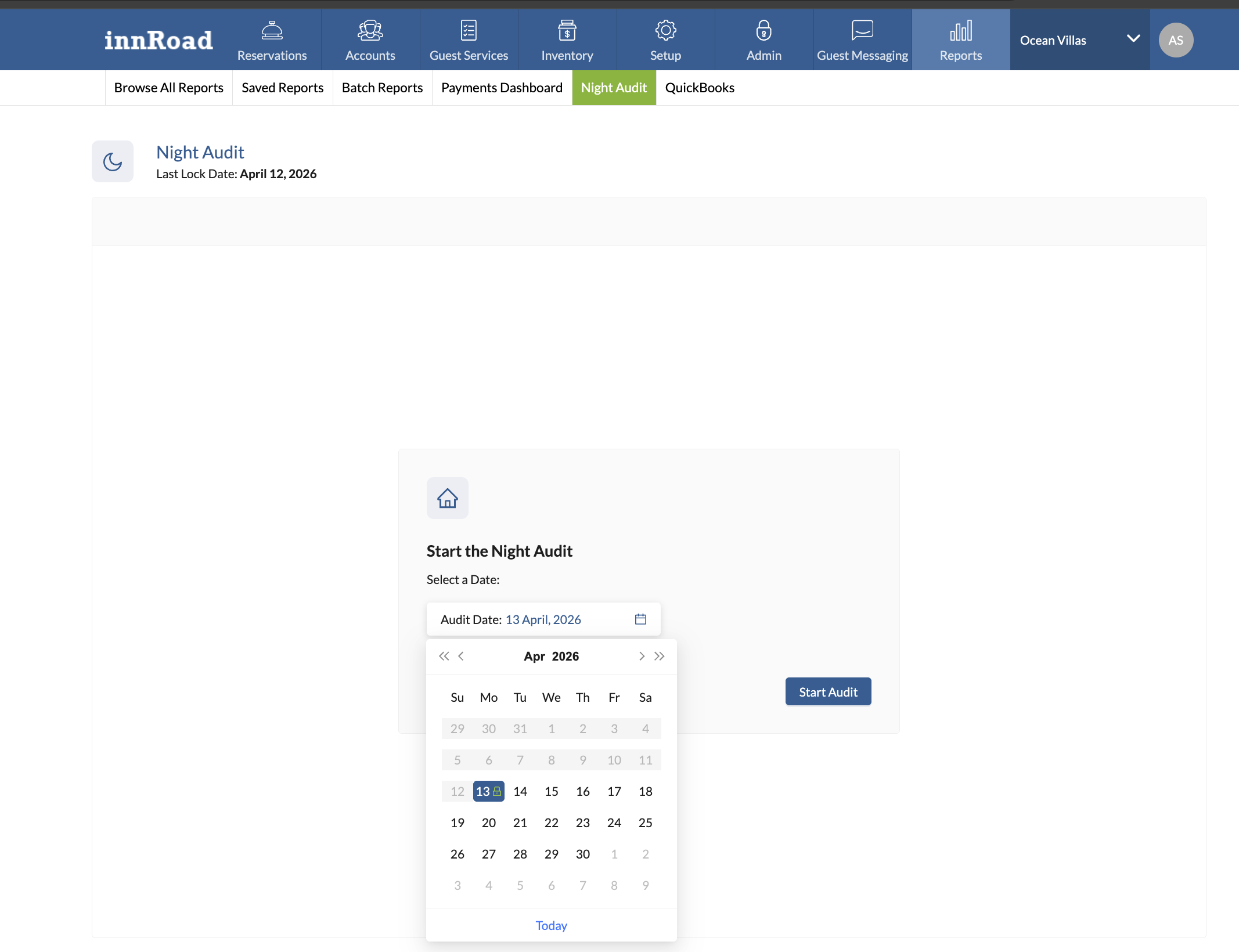
- Click Start Audit.
Reviewing the period before the Folio step
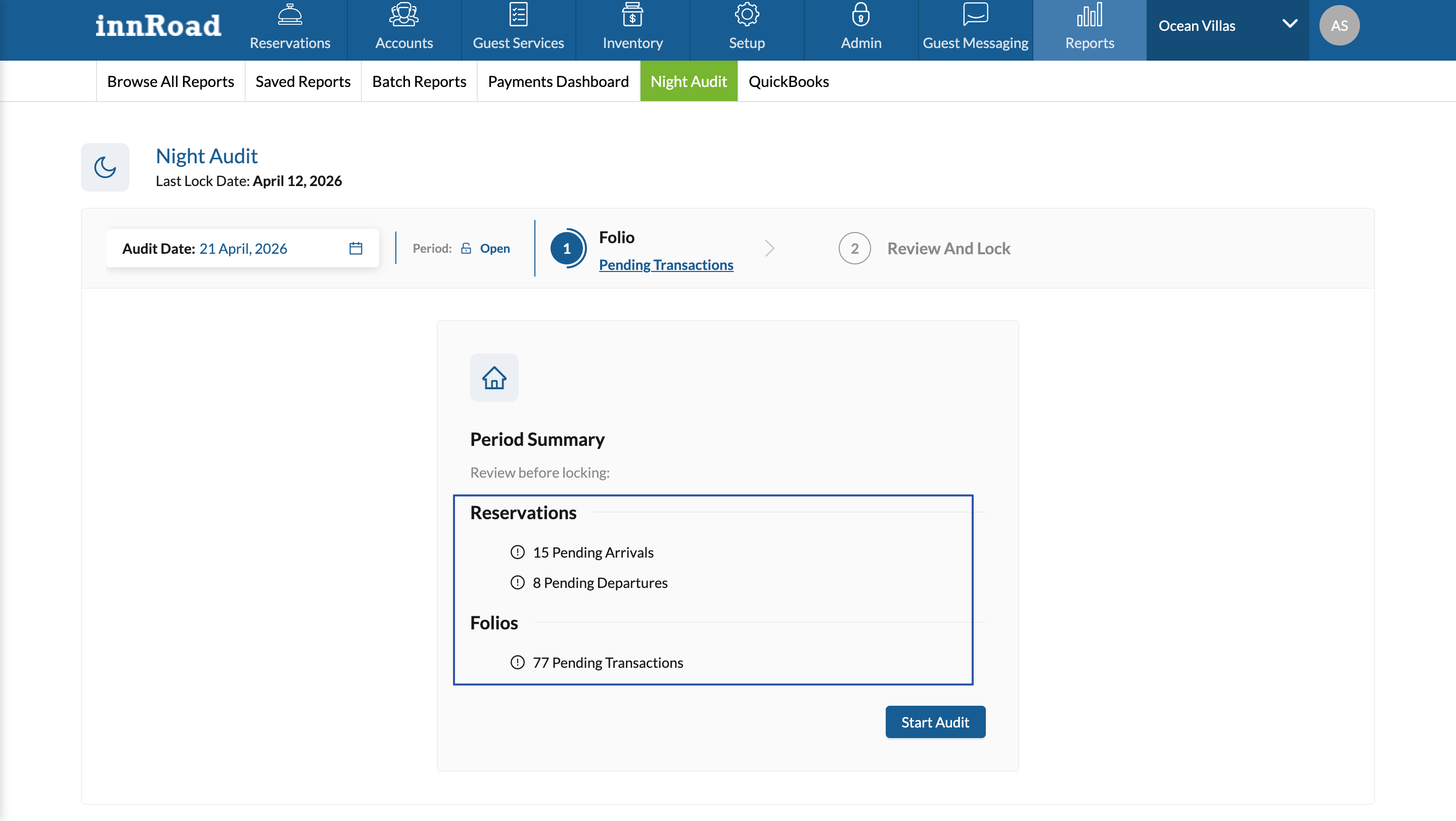
After you start the audit, the Period Summary shows what still needs attention before locking.
This is a live summary and it updates as you resolve items, and you'll see it again at the end to confirm the period is ready.
It covers any pending reservation activity and the status of folio items:
- Reservations: Pending arrivals and pending departures that should be resolved, from the last locked date until the selected date.
- Folios: Whether all folio items have been posted.
Resolving pending reservations
Resolve pending reservations before posting folio items, so the period's charges are accurate:
- Pending arrivals are expected guests who haven't been checked in. Resolve each one by checking the guest in, or by marking a no-show or cancellation. An unresolved arrival can leave a stay and its charges in the wrong state for the period.
- Pending departures are guests past their checkout date who haven't been checked out. Resolve each one by checking the guest out or extending the stay, so the room stops accruing charges and frees up.
You can use the Reservation Dashboard and Search to review pending arrivals and departures.
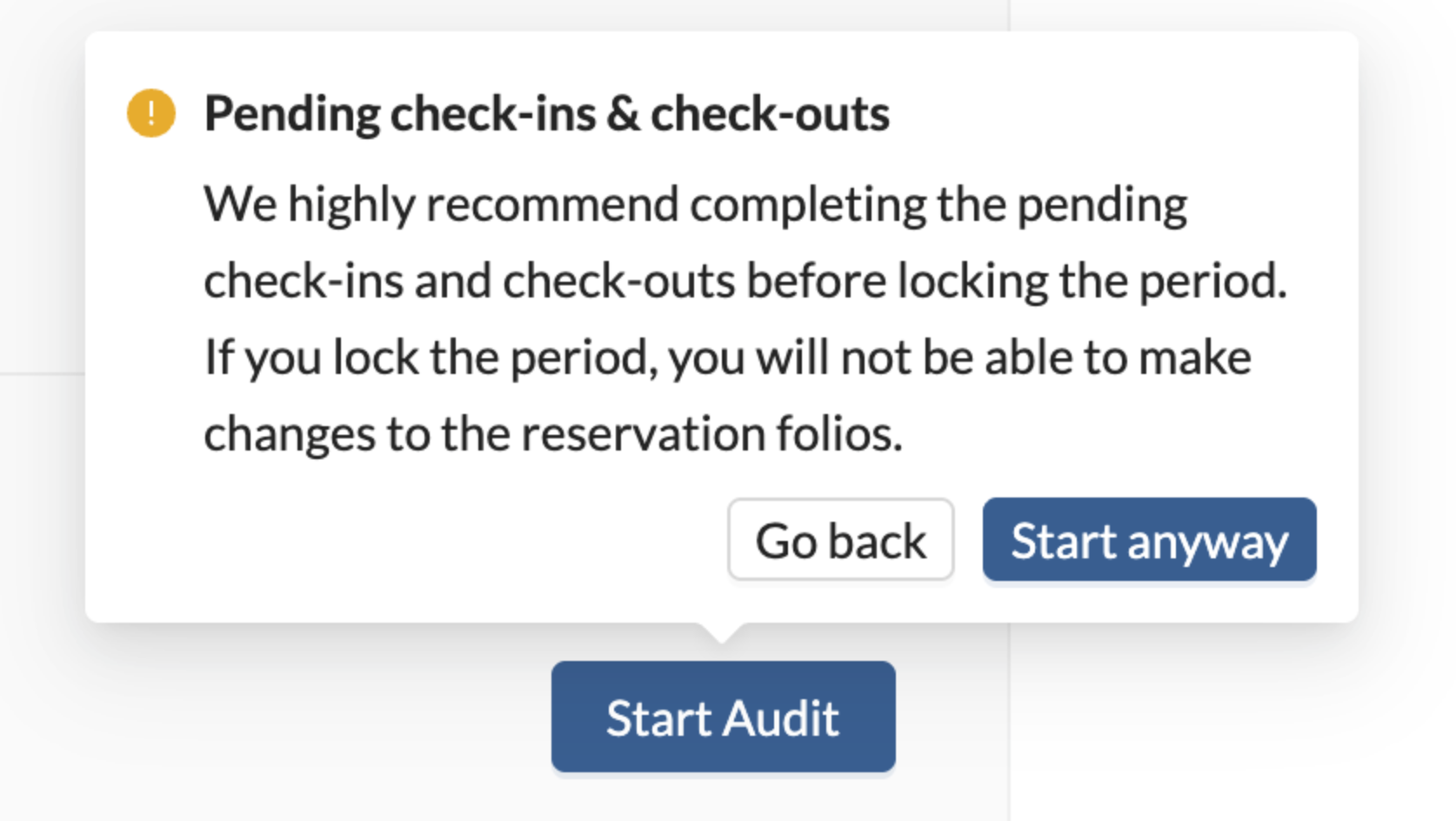
We strongly recommend finalizing all pending check-ins and check-outs before posting folio items. If you click Start Audit before completing all pending reservation tasks, you'll see a confirmation screen:
The Folio step
In the Folio step, the Folio Transactions table lists transactions for the period, grouped into summary tabs.
Each tab shows the number of items and their total amount. Posting these transactions is what commits them to your ledger, so this is the step that finalizes the period's financials.
Clicking each tab changes the filter applied to the table below:
- Pending: Transactions that still need to be posted, with effective dates within the period.
- Posted: Transactions that have already been posted, with effective dates within the period.
- Voided: Transactions that have been voided, with effective dates within the period.
- Total: All transactions for the period.
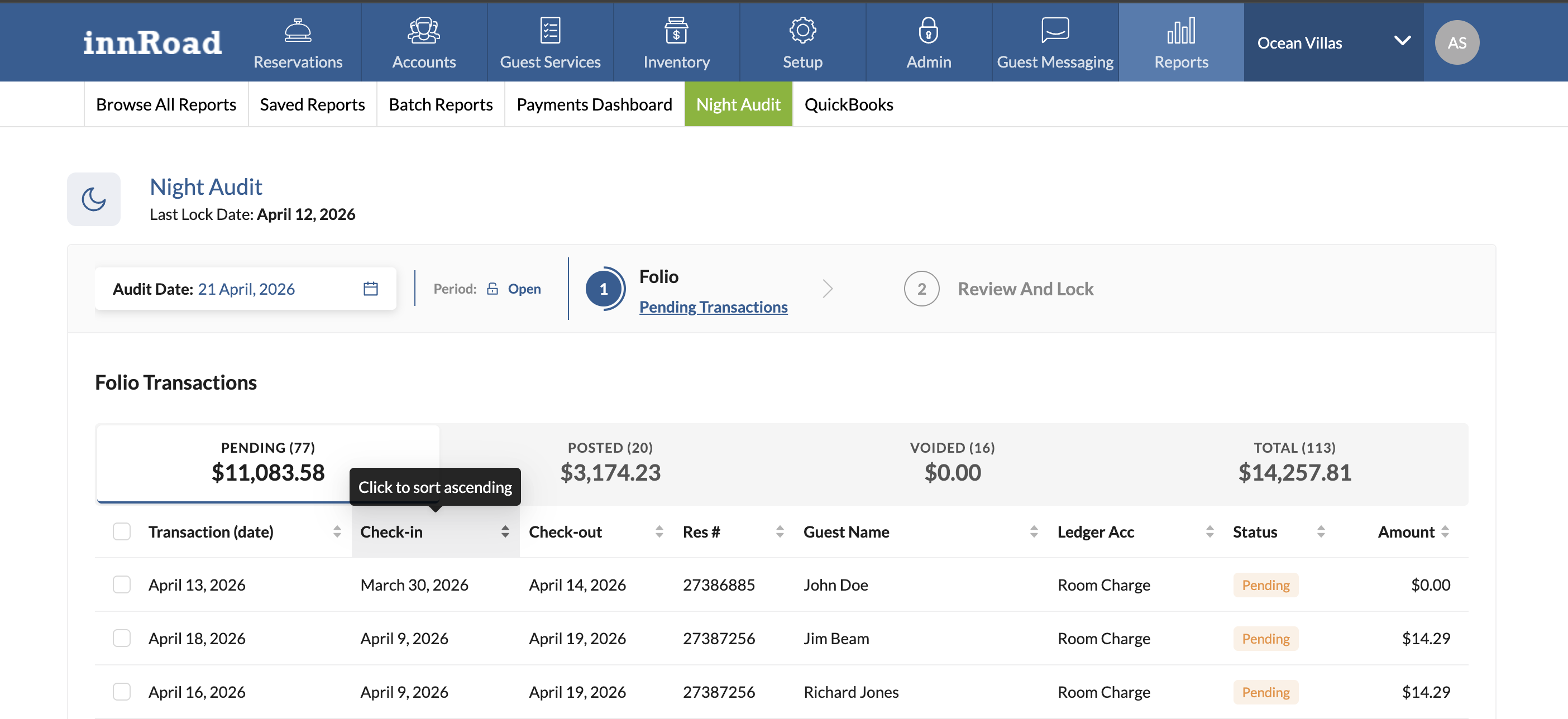
Click any column heading to sort the table by that column. Sorting is the fastest way to surface problems.

For example, sort by Amount to find outliers, or by guest name to spot charges on the wrong folio:
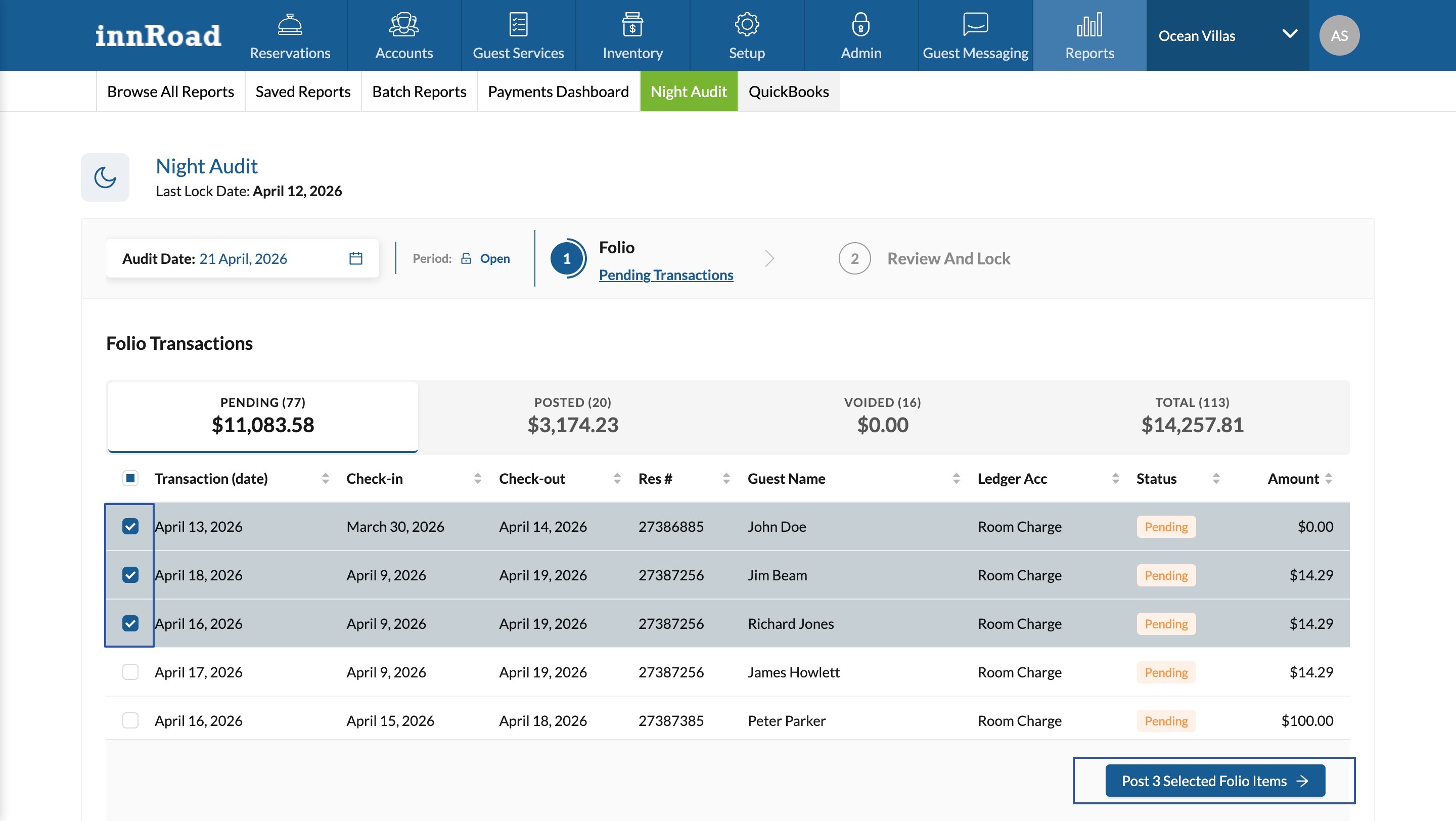
The Pending tab lists every transaction waiting to be posted, with its date, check-in and check-out, reservation number, guest name, ledger account, status, and amount.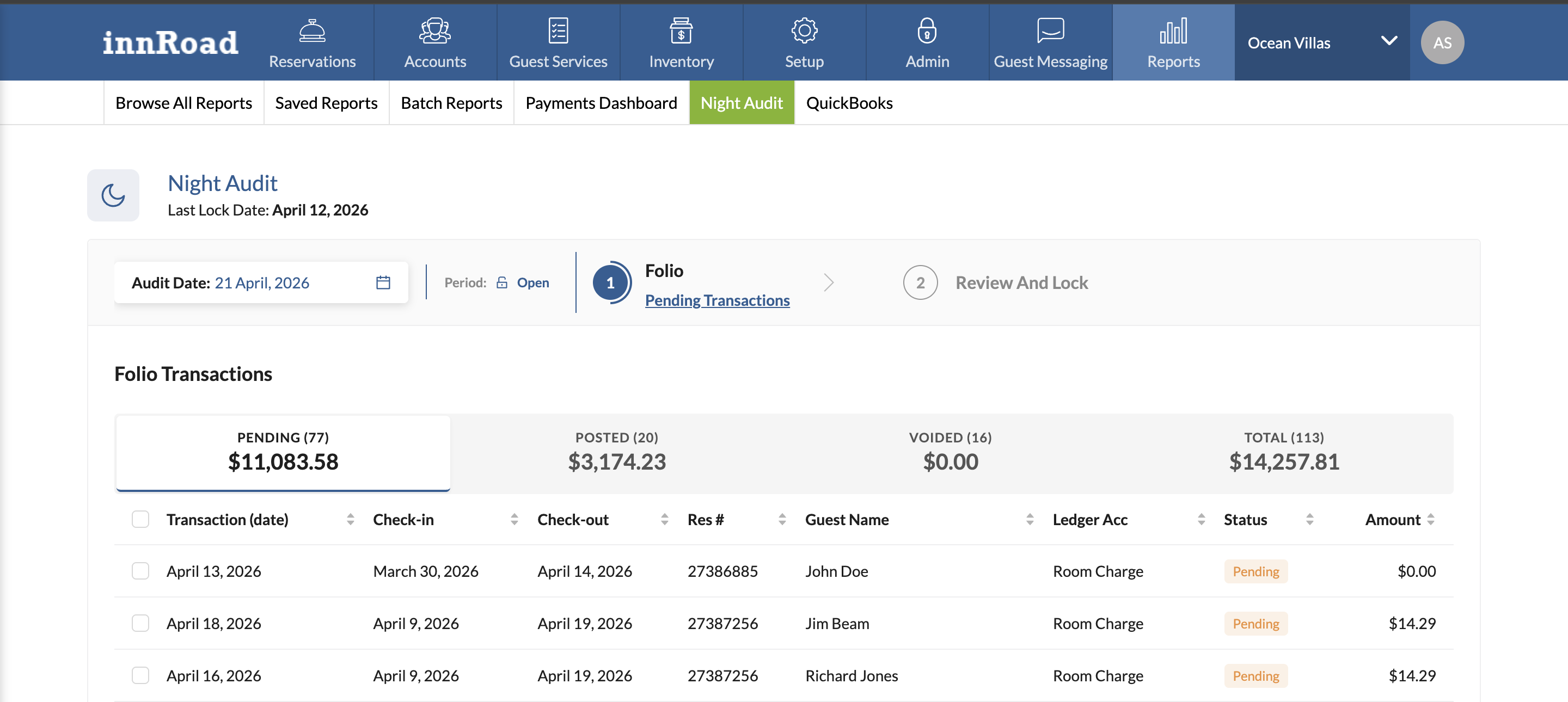
What to check before you post
Scan the table for problems before posting folio items.
Here's what to look for:
- Duplicate charges: the same folio item with the same effective date appears multiple times in one reservation.
- Unusual amounts: zero, negative, or unexpectedly high or low values. Sort by Amount to surface these quickly.
- Wrong guest or reservation: a charge attached to the wrong folio. Sort by guest name to catch these.
- Wrong ledger account: revenue lands in an unexpected account. For example, an item with a Pool description in the Bar ledger.
- Unintended voids: open the Voided tab and confirm each void was deliberate.
- Off effective dates: charges dated outside the stay or outside the period.
Correct anything that looks wrong before posting. Once a period is locked, you can't change transactions for those dates.
Posting pending transactions
You can select one or multiple Pending folio items, then click Post Selected Folio Items (the button shows how many you've selected):
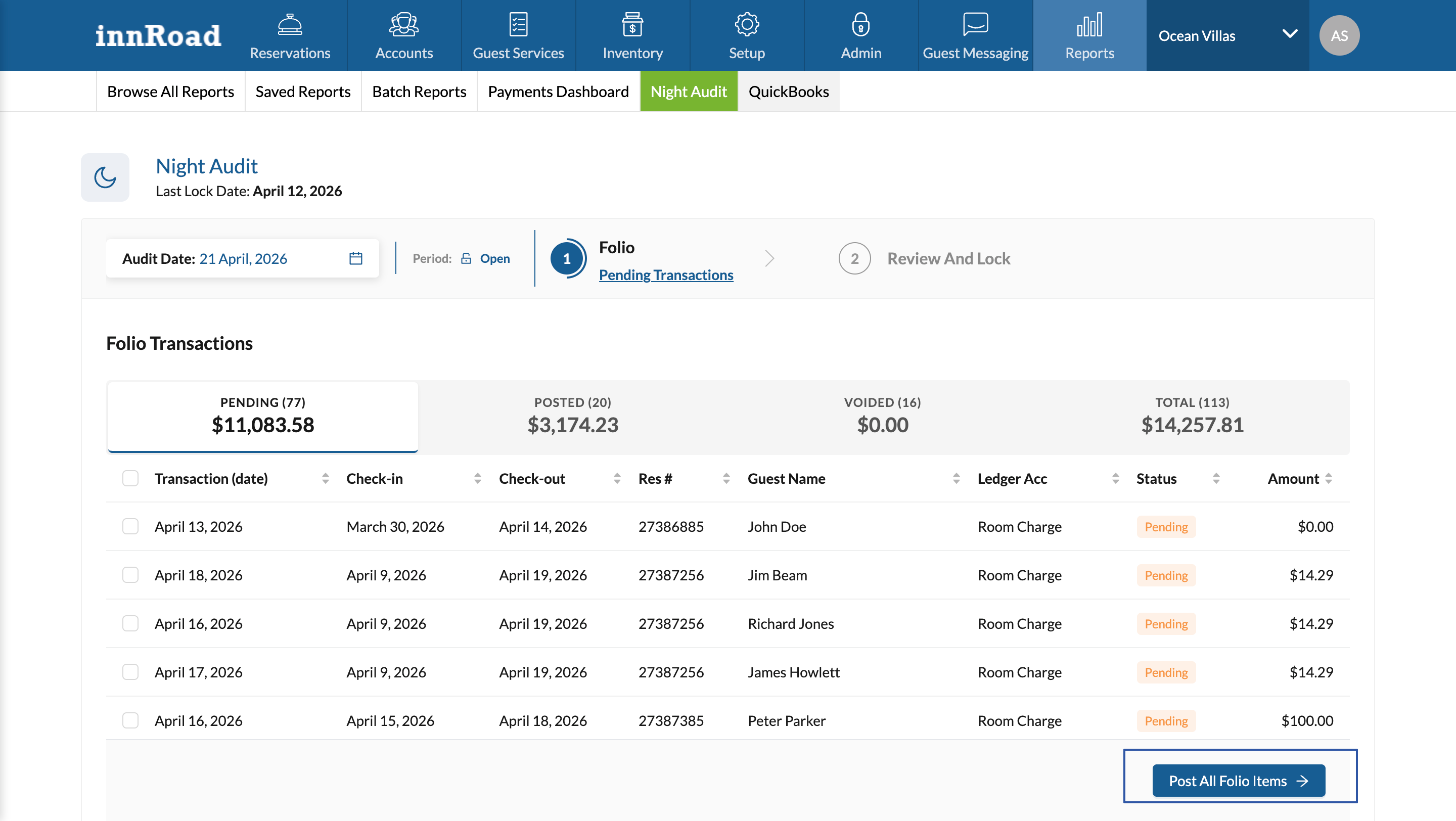
To post all remaining pending transactions at once, click Post All Folio Items at the bottom of the table.
Once all items are posted, the period is ready for the Review And Lock step.
Review and lock the period
After folio items are posted, the Period Summary updates to confirm everything is complete and the period is ready to lock. You'll see the date the period will be locked through, along with the status of reservations and folios:
- Reservations: The number of pending arrivals and departures, or a confirmation that all pending check-ins and check-outs are complete.
- Folios: All folio items posted.
When everything is complete, click Lock Period.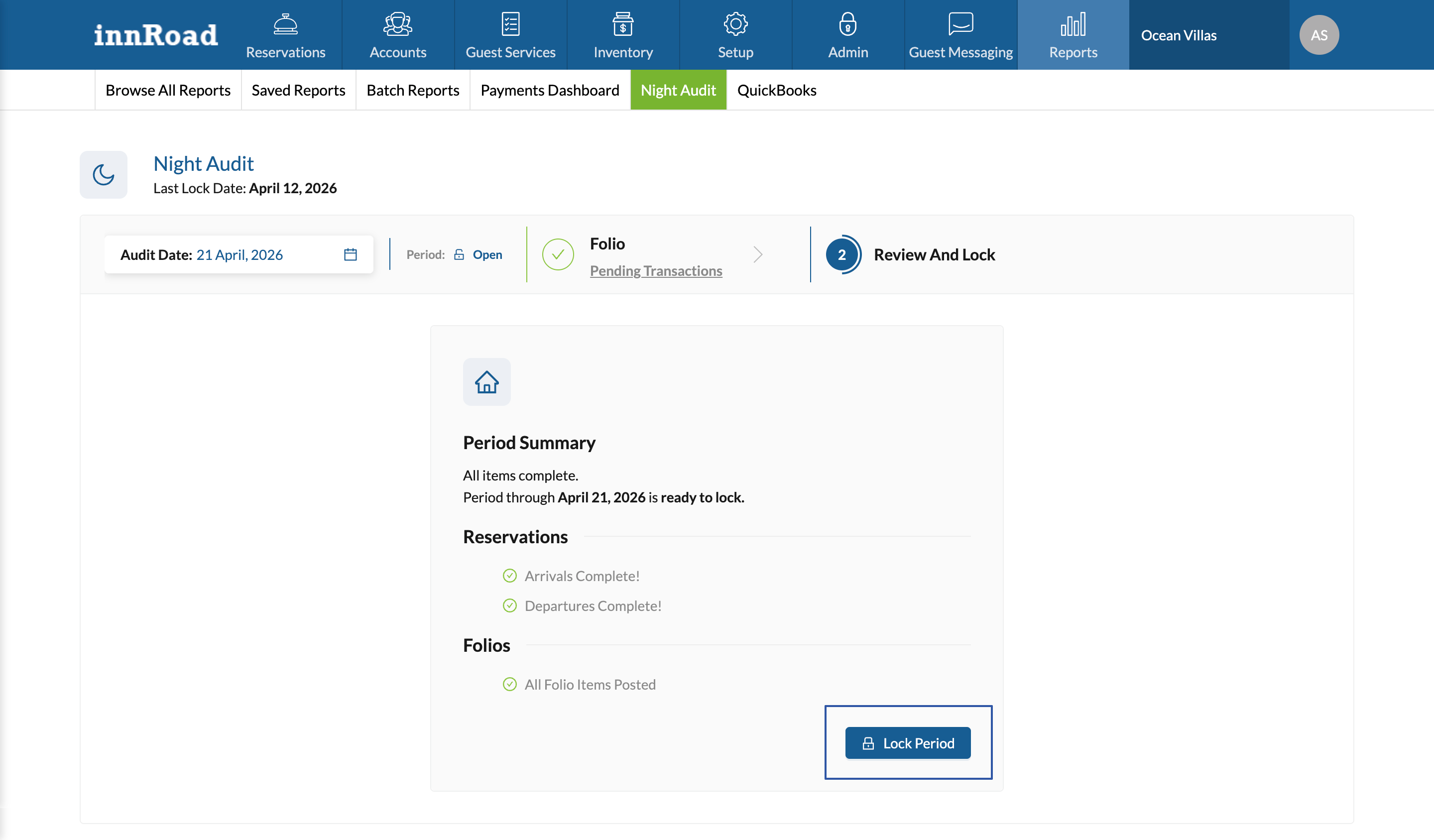
Locking a period prevents further modifications to transactions on or before the locked date. Make sure all reservations and folio items are correct before you click Lock Period.
If you need to unlock a date in a locked Period to correct any errors, contact support@innroad.com.
Once the period is locked, a confirmation screen shows the date you've locked through. Click Done to finish.
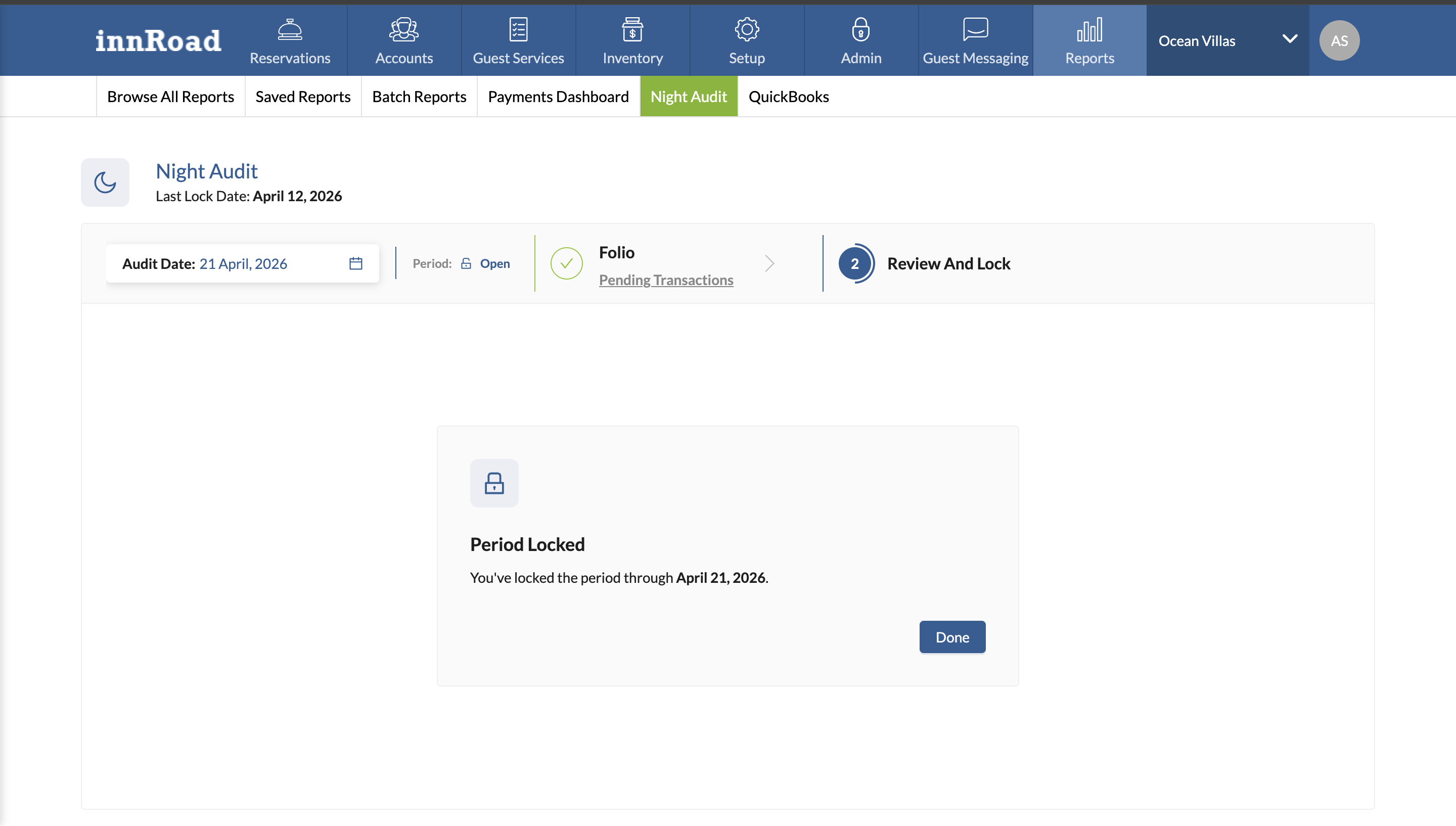
After locking, the Last Lock Date at the top of the Night Audit screen updates to the date you just locked through, ready for your next audit.
Auditing a long period
If the Night Audit hasn't been run for a while and you try to lock a period over 30 days, there can be a large amount of data to process. When this happens, you're asked to choose how to proceed:
- Adjust Audit Dates: Select an earlier date to shorten the period and process your data for review in real time.
- Process in Background: Use the current selection. All folio transactions in the period are posted and locked in the background, and you receive an email when it's done.
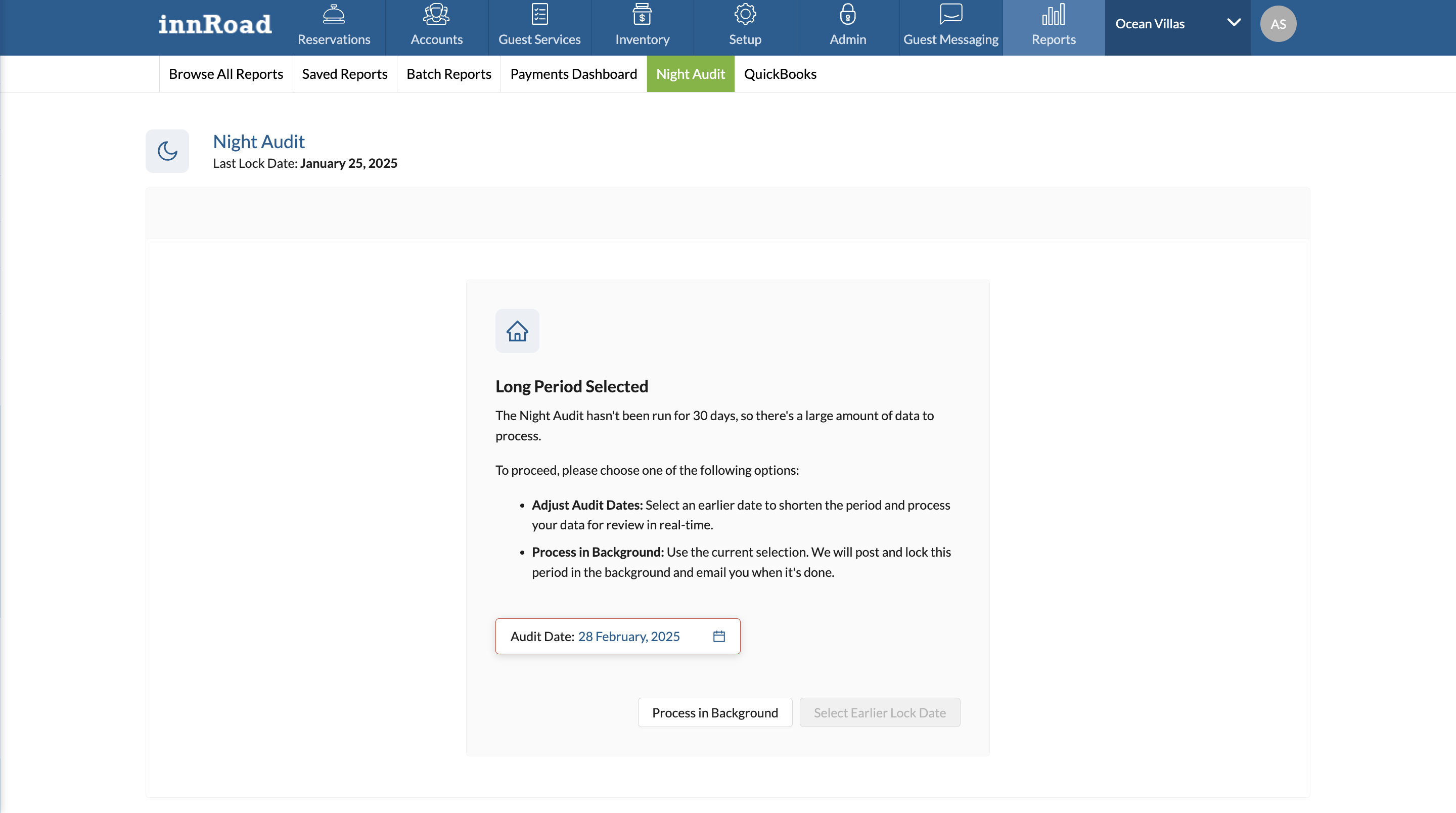
If you don't need to review each transaction line by line, Process in Background lets you keep working while the audit runs, and emails you once the period is locked.
Keep in mind this skips the line-by-line review, so the transactions are posted and locked without the manual checks described above. If you want to catch errors before they're locked in, choose Adjust Audit Dates and review the period in shorter spans.
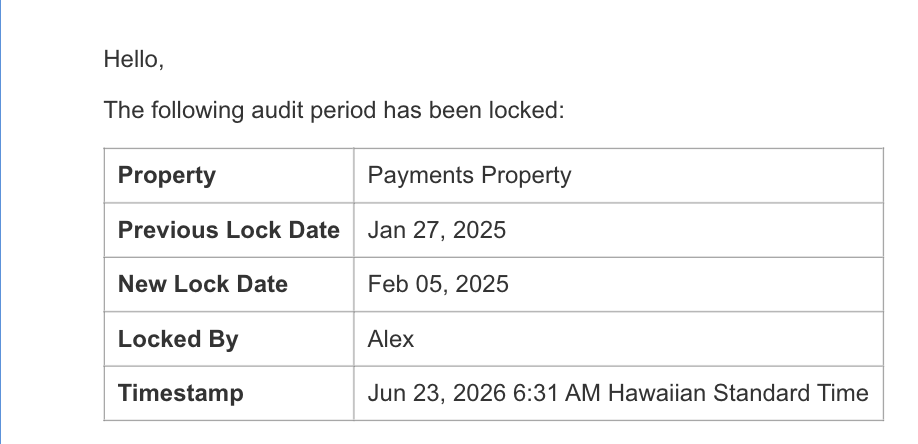
Period Lock Notification
When a period is locked, the admins of the account will recieve an email notificatoin:
Was this article helpful?
That’s Great!
Thank you for your feedback
Sorry! We couldn't be helpful
Thank you for your feedback
Feedback sent
We appreciate your effort and will try to fix the article